
On this page
- File names
- Titles
- Alt Text
- Component-specific photos
- How to upload an image to the CMS
- Additional guidelines
Before you start
It is important to choose an appropriate file name, title and alt text for your images. Image file names, titles and alt text contribute to SEO and accessibility.
File names
The file name of an image has a high SEO value. Good descriptive file names give search engines like Google clues about the subject of the image, which increases the likelihood it will rank higher in relevant search results. Learn more about Google image SEO best practices.
Do
- Use descriptive and meaningful file names.
- Use a name that accurately describes the content of the image. This can include keywords that describe the subject matter or context of the image.
- Keep file names short and concise. Long file names can be difficult to read and may not display properly in certain programs or applications.
- Try to keep the file name to around 60 characters.
- Remove words like 'the', 'of', 'in' as these have no SEO value.
- Use lowercase letters when naming image files and replace spaces with hyphens.
- Hyphens are easier to read and do not get confused with spaces.
- Develop a consistent naming convention to ensure that all images are named in a uniform manner.
Don't
- Don't use generic names such as 'IMG001' or 'photo1' or the Getty file number as they provide little to no information about the image.
- Don’t stuff the file name with too many key words – it should be descriptive but still make sense.
- Don't use special characters such as '@, $, #, %, and &' in file names as they can cause issues with file compatibility and may not be recognised by certain operating systems.
- Don't use spaces in file names as this can cause issues with file compatibility and may lead to errors when trying to access or rename files.
- Don't use abbreviations or acronyms unless they are widely recognized and understood.
- Don't use copyrighted names or trademarks in file names. This can lead to legal issues and may result in the image being removed or deleted.
Titles
Titles are also important for SEO and help you find your image in the content management system (CMS) when searching the media library.
Do
- For titles, don’t replace spaces with hyphens. The title does not need to exactly match the file name.
- Image titles should be short and to the point. Avoid lengthy titles that may confuse viewers or dilute the main message of the image.
- Use proper capitalisation and punctuation. Use title case and ensure all punctuation is correct.
- Image titles should accurately describe the content of the image in a concise and clear manner.
- The title should give the audience an idea of what the image is about without them having to view it.
- Include relevant keywords in the image title to make it easier for people to find it in search engines.
- This will also help the image rank higher in search results.
- Ensure that all image titles follow the same formatting style.
Don't
- Don't use titles that are irrelevant to the image or that misrepresent its content.
- Don't use excessive keywords.
- Don't use all caps in your image titles.
- Don't use special characters in image titles.
- Don't use generic titles, for example, 'Image001', 'photo8'. These titles do not provide any useful information and can make it difficult to identify your images.
Alt Text
Alt text (alternative text) is a textual description that can be added to images to provide context and accessibility to those who use screen readers or have other visual impairments.
Do
- Do provide a clear and concise description of the image. The alt text should accurately convey the content and purpose of the image.
- Do keep the alt text brief, but informative. A good rule of thumb is to keep the description under 125 characters.
- Do use keywords that describe the image, but avoid keyword stuffing.
- Do use appropriate punctuation and capitalisation in your alt text.
- Do consider the context of the image when writing the alt text.
Don't
- Don't use alt text as a place to cram in unnecessary or irrelevant information.
- Don't use the same alt text for multiple images. Each alt text should be unique and accurately describe the content.
- Don't use alt text for images that are purely decorative, such as background images or design elements that don't add any content to the page.
- Decorative images should have null alt text (alt="").
Component-specific photos
Certain components require specialised photo specifications.
-
Content pages
Here’s how to add photos to content pages via the WYSIWYG editor. -
Homepage background image
On our homepage there’s a background photo behind the search box in the main banner. This photo should be cropped to 1,800 x 410px using a free online image cropping tool. Most of the photo will be covered by the search box, so it’s best to use simple photos or ensure that the focal point is on the right.
Example:
-
Hero banner background photo
There are no special photo specifications for the hero banner component. The background photo simply needs to be uploaded in a 3:2 aspect ratio, it will be displayed on the right half of hero banner. Don’t crop or resize photos to be long and thin, the image will re-size based on screen resolution. -
Cards
There are no special photo specifications for cards. - There are no special photo specifications for image blocks.
How to upload an image to the CMS
In most cases, uploading photos to the CMS is a simple 3 step process.
-
Download a suitable photo from Getty
Photos purchased from our Getty account are safe to use on our site as we have purchased the right to do so. (Access to Getty can be granted by contacting creativeservices@customerservice.nsw.gov.au to create an individual login). Don’t use other images you’ve sourced yourself from Google or anywhere else as using unlicensed images can incur large penalties. Don’t use illustrations as we don’t yet have any brand guidelines around them. -
Ensure the photo has a 3:2 aspect ratio
Images with a 3:2 image ratio work best with most components in the CMS. Most horizontally oriented photos have this aspect ratio by default. This simply means that the ratio of the photo width to height is 3 to 2. If you have a tall portrait oriented photo with a 2:3 aspect ratio, you can crop it using a free online image cropping tool. -
Upload the photo
Upload the photo in its original full size to our CMS media library. It will be compressed and optimised for different devices automatically by the CMS. Don’t forget to add an alt tag describing your image. Use the below steps to upload:- Go to Content > Media > Add media > Image
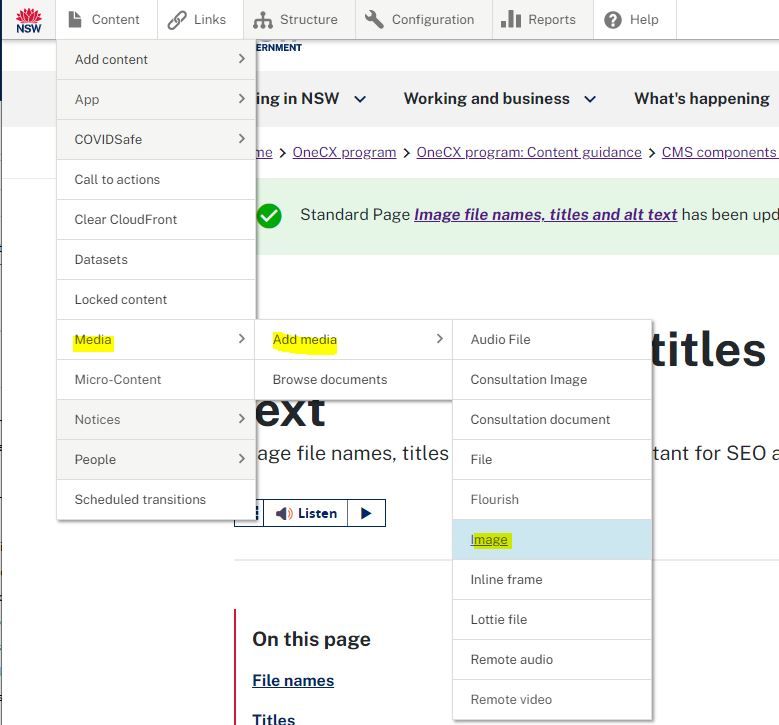
- Complete the fields
- Add a title (mandatory).
- Image - Add a new file (mandatory): Search for the image you wish to upload.
- Alternative text (mandatory): add the alt text for the image following the guidelines.
- Agency (mandatory): search for your agency/department.
- Editorial group (mandatory): the group responsible for the image.
- Description (optional): the description will appear when you use the image in the Gallery component. Recommended length for the description is 100-200 words.
- Image credit: if you need to acknowledge the artist or photographer or add other required image attribution.
- Save your image. The image has been added to the media library and is ready for use on your page.
- Go to Content > Media > Add media > Image
Additional guidelines
Suggested file size
Some components mentioned above require specific sizes. However, in general if you use an aspect ratio of 3:2 it should work for most components.
Suggested image dimensions for most components:
Pixels: 3:2 ratio, 1920 x 1280 pixels
Size: save this image at 72dpi at 80% compression as a JPG (Note: CMS is best at optimizing JPGs).
If your image file size is too large
If the file size exceeds the maximum file size of 8MB, you’ll need to resize it to lower the file size. Generally, we recommend resizing the image to 1920 x 1280 pixels. Ensure the dimensions don’t go below 1500 x 1000px.
If your image dimensions are too small
If your source image dimensions are smaller than the component you’re going to use it in, it’s best to find another larger sized image. If there’s no other options, it’s still ok to use the small image, but it will look blurry.
The best file type to upload
The CMS automatically optimises your image for devices and browsers. This optimisation process works best with JPGs.
If you are using CMYK images
Some images that were originally created for print use will be in CMYK image mode. You’ll need to change the image mode to RGB before uploading to the CMS. This can quickly be done in Photoshop as follows: "Image -> Mode -> RGB Color" (might be slightly different depending on your version of Photoshop).
Images that are allowed to be used on our site
Always make sure that we have a legal right to use an image on our website. Images purchased from our Getty account are allowed to be used on our site as we’ve purchased the right to do so. Approved images from the branding team are also safe to use. Don’t use other images you’ve sourced yourself from Google or anywhere else as using unlicensed images can incur large penalties.
Need any more help?
If you have any questions, or require assistance with anything mentioned in this article, submit a request via the webform.